Getting started: connect your first screen
A screen in ScreenTinker is any TV, tablet or computer running the small ScreenTinker player. You connect it to your account once, by typing the 6-digit code it shows, and from then on you choose what it plays from your own computer or phone.
This guide takes you from a new account to a screen showing your first picture. It takes about five minutes. You don't need a TV to try it: a second browser tab works as a screen.
Before you start
- A screen and an internet connection. A smart TV, an Android or Fire TV box, a Raspberry Pi, a computer, or just another browser tab to try it out.
- Something to show (optional). A photo or a short video of your menu or your opening hours. If you have nothing ready, you can use the sample image or make a sign from a ready-made design.
Create your account
- Open ScreenTinker and choose Create Account under the sign-in box.
- Fill in Name, Email and Password. Use a password of 8 or more characters.
- Press Create Account.
On the hosted service, a new account gets a 14-day free Pro trial. You are asked to Confirm your email: open the link in the email you receive, then sign in. If the email doesn't arrive, check your spam folder or press Resend the email.
The first person to open a new server sees "Create your admin account to get started" and a Create Admin Account button. That account runs the server and has no screen or storage limits. There is no trial, and you don't have to confirm your email. Anyone who signs up later uses Create Account, unless the server has sign-ups turned off.
The setup guide
After you sign in for the first time, a setup guide opens. It walks you through the three things a screen needs: the player, the connection and something to show.
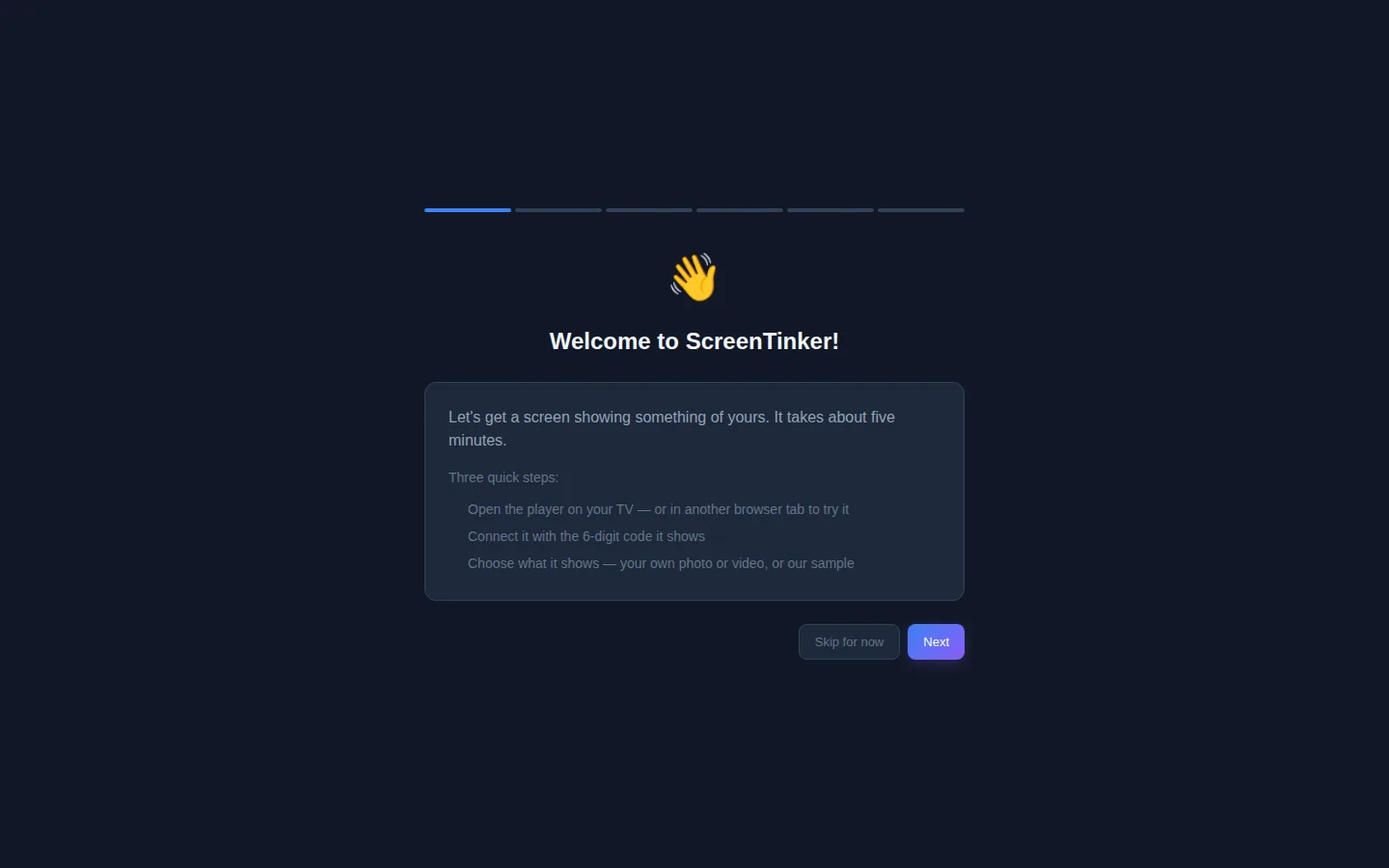
The next page asks Coming from another signage app? If you are, you can bring your media and playlists across. If not, press No, start fresh.
You can leave at any time with Skip for now. You can still add a screen later (see adding more screens).
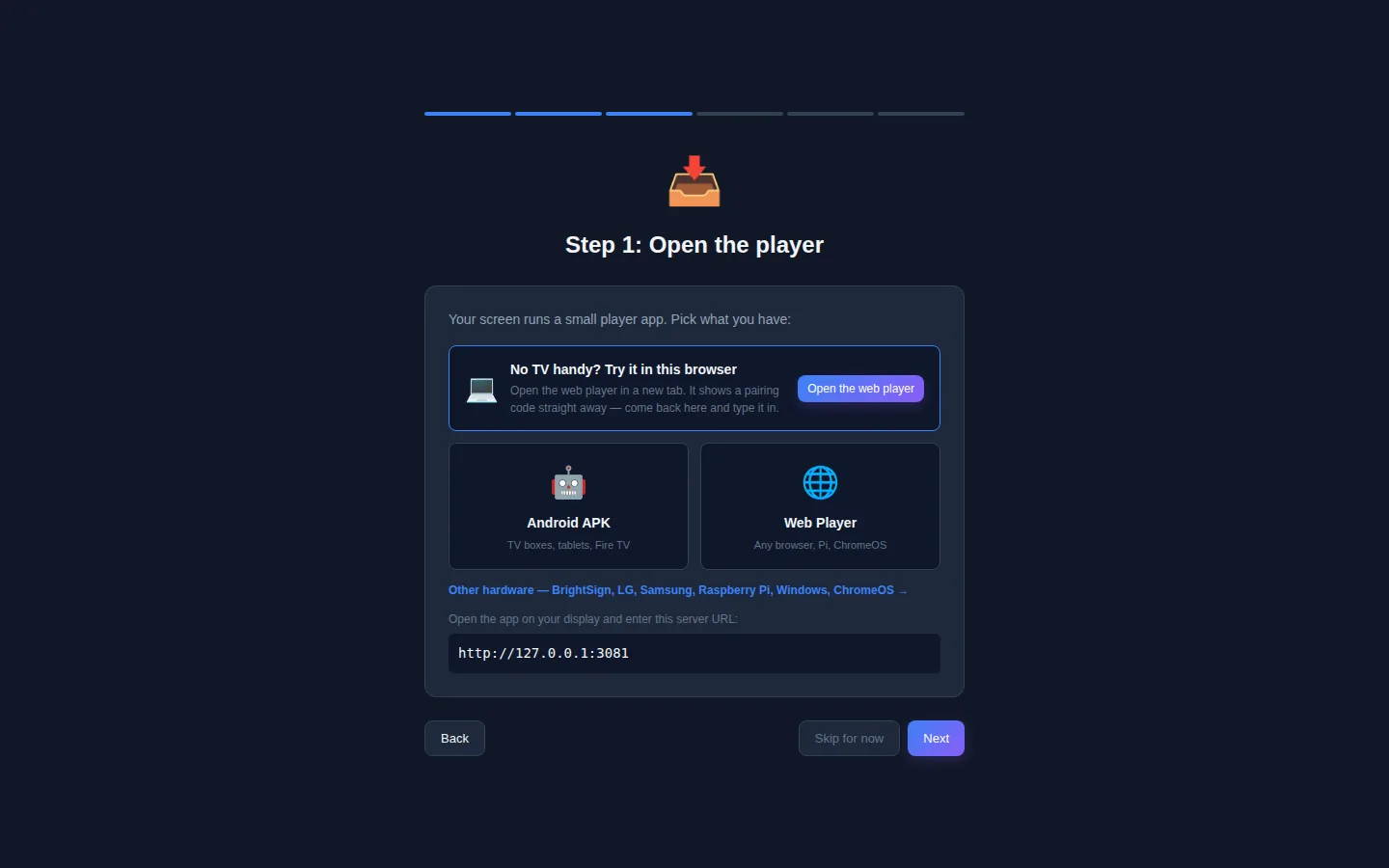
Step 1: Open the player on your screen
Your screen needs the ScreenTinker player. Pick what you have:
- Android APK: for Android TV boxes, tablets and Fire TV.
- Web Player: for any web browser, a Raspberry Pi or a Chromebook.
- Other hardware: the link under the tiles lists players for BrightSign, LG, Samsung, Raspberry Pi, Windows and ChromeOS, each with its own setup steps.
When an app asks for a server address, type the one shown under "Open the app on your display and enter this server URL:".
Once the player is running, it shows a big 6-digit Pairing Code. Leave it on the screen and go back to the setup guide.
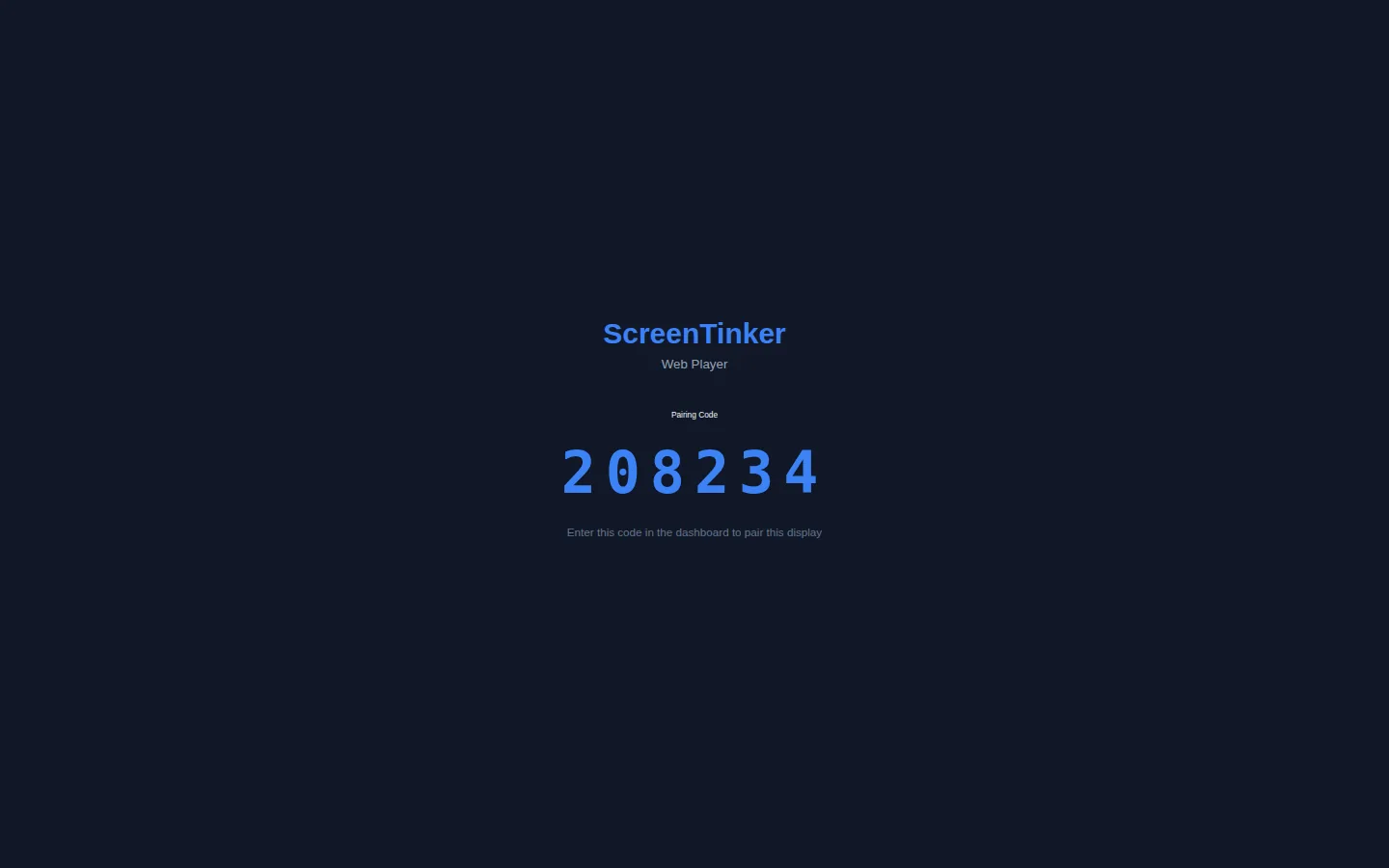
The web player lives at your ScreenTinker address followed by /player. Open it in a new tab, or on a second computer, to see the whole thing work before you set up a real TV. For a TV or player box, see the Android TV and Fire TV or Raspberry Pi guide.
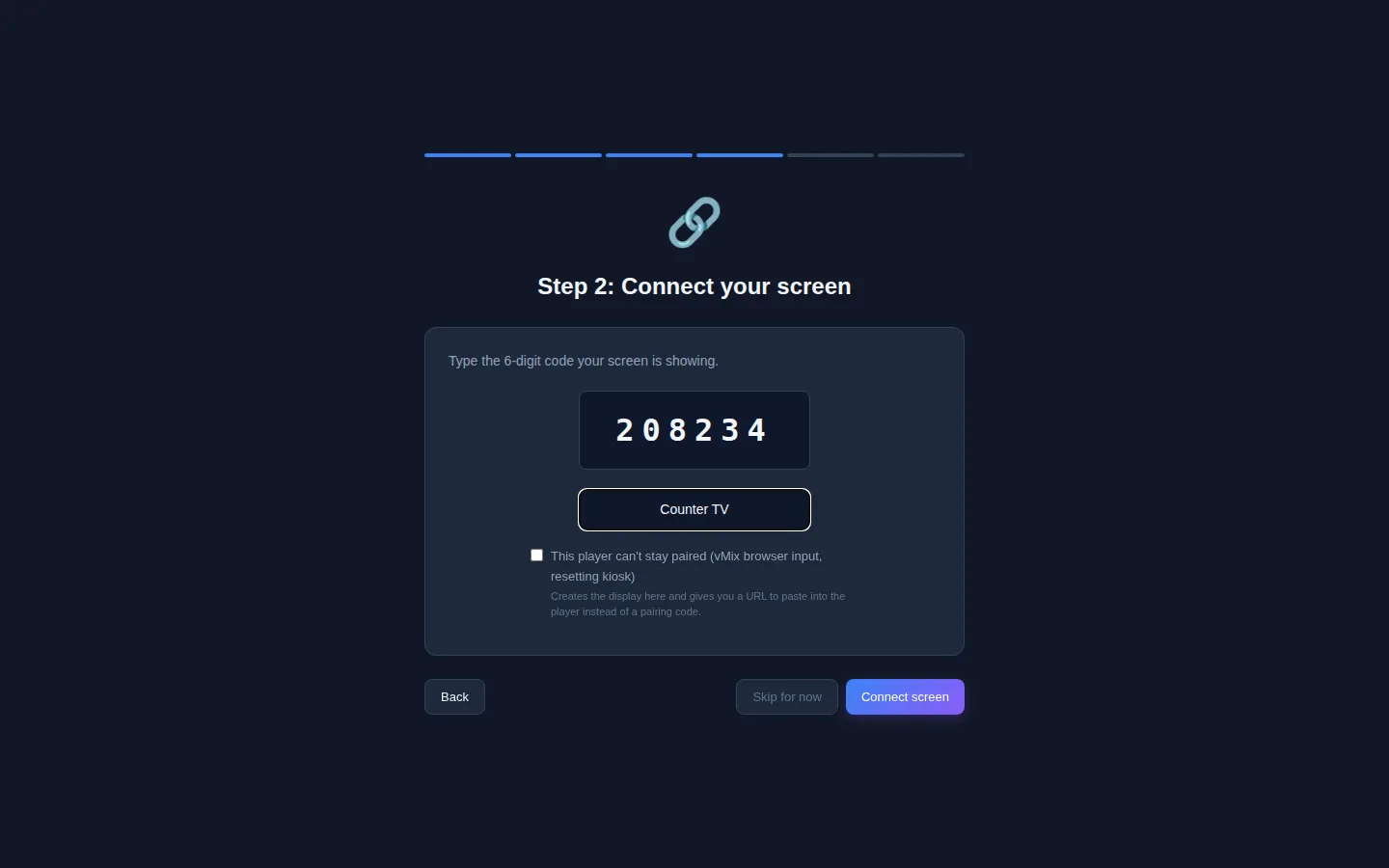
Step 2: Connect your screen
- Type the 6 digits from the screen into the big box.
- Give the screen a name you will recognise, such as "Counter TV" or "Lobby TV". You can leave it empty; the screen is then called "Display 1", "Display 2" and so on.
- Press Connect screen. You see "Screen connected!" and the guide moves on.
"No device found with that pairing code" means a digit is wrong; check the screen and type it again. After 5 wrong codes in a row you have to wait 15 minutes before trying again. "Pairing code expired" means the player has not been in touch with the server for more than 15 minutes: check the screen is still on and connected to the internet, then try again.
Leave This player can't stay paired unticked. It is only for players that forget everything when they close, such as a vMix browser input or a kiosk that resets itself. Ticking it gives you a web address to paste into the player instead of a code.
Step 3: Choose what it shows
Now put something on the screen. You have three choices:
- Upload your own: click the dashed box, or drop files on it. You can pick several photos and videos at once (MP4, WebM, JPEG, PNG, GIF, MP3, WAV). Each photo shows for 10 seconds; a video plays to its end.
- Use a sample image: puts a ready-made "This screen is live." picture on the screen, so you can see it work straight away.
- Make a sign: pick a ready-made design, type your own words and put it on the screen.
Whichever you choose, the setup guide sends it to the screen for you. You see "Uploaded! Sending it to your screen..." and then "Sent to your screen!". A screen that is online changes as soon as the file has downloaded to it; a large video can take a little longer.
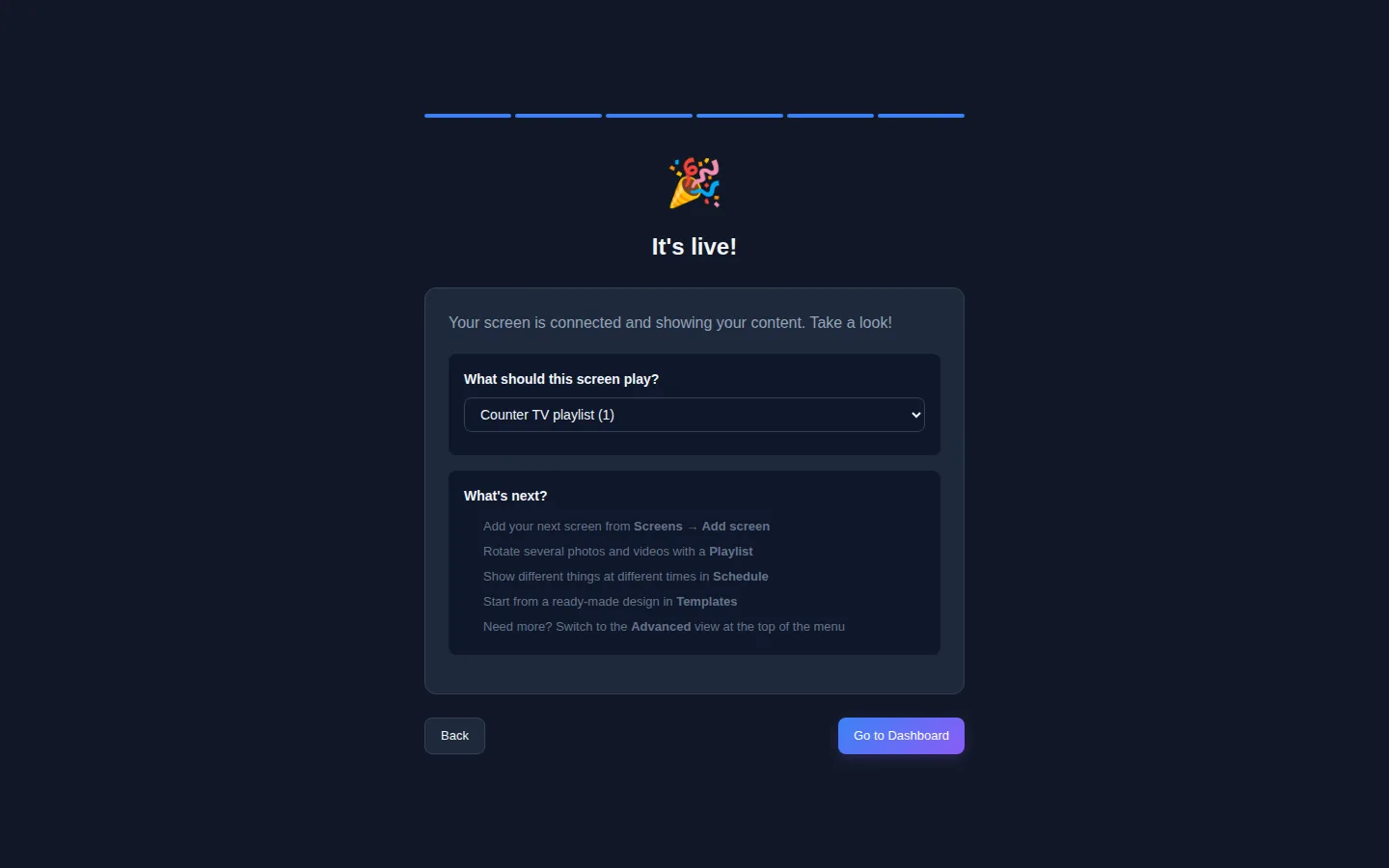
It's live
The last page says It's live!. Under What should this screen play? the screen's new playlist is already chosen; leave it as it is. Press Go to Dashboard to finish.
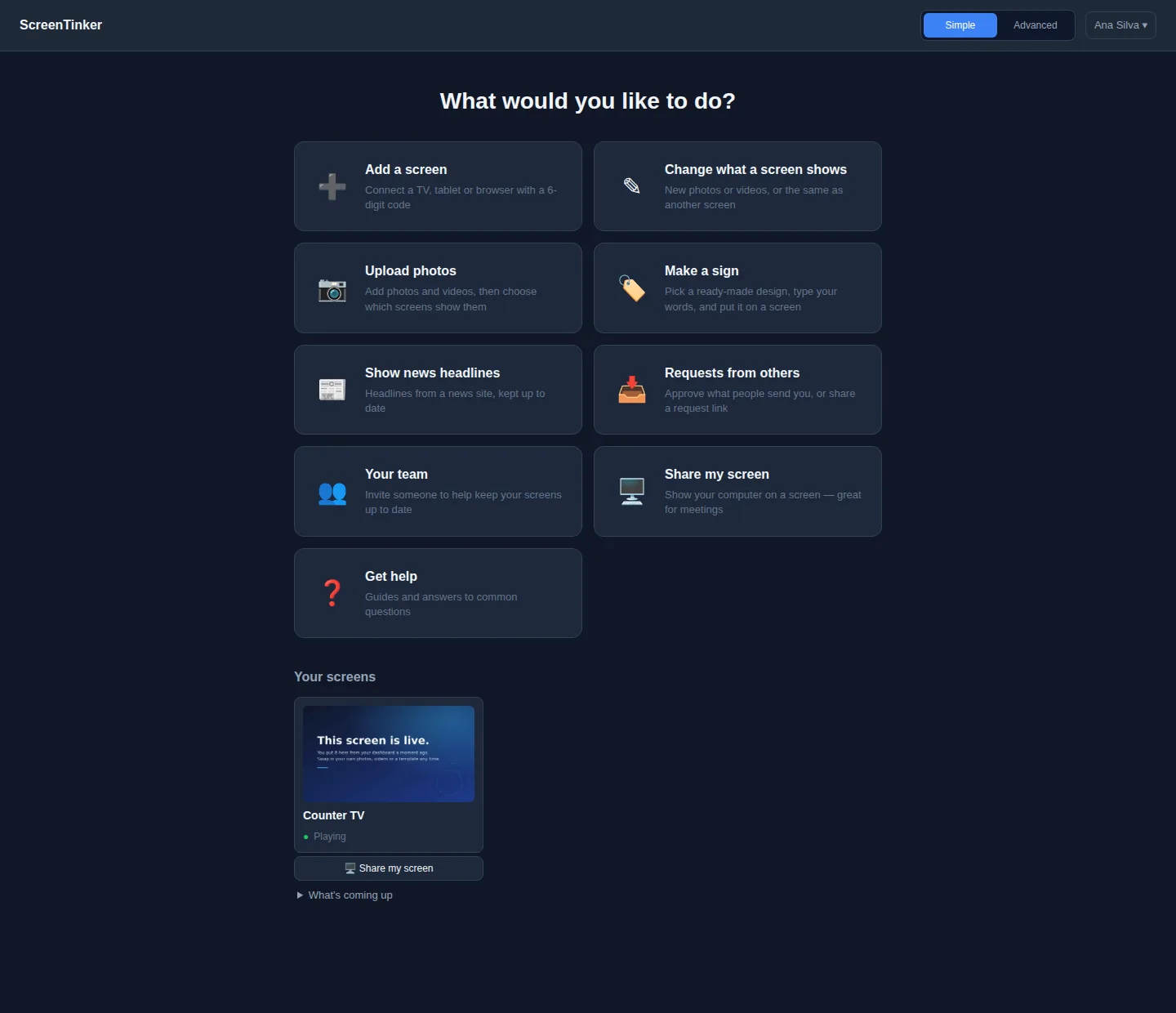
You land on the home page. Under Your screens the new screen shows a small picture of what it is playing and the word Playing. If it says Offline, the player has lost its connection: check the TV or the browser tab is still open.
Simple and Advanced view
New accounts start in Simple view: one page of tasks such as Change what a screen shows, Upload photos and Your team. Changes you make here reach your screens without any extra step.
The Simple / Advanced switch at the top changes to the full dashboard, with a menu for screens, content, playlists, schedules, layouts and more. Some pages, such as Schedule, are only in Advanced view. You can switch back at any time; the setting is kept with your account.
When you change a playlist in the full dashboard, the change is a draft. Your screens keep showing the last published version (a playlist that was never published shows nothing) until you press Publish. The banner "Unpublished changes" reminds you. Simple view and the setup guide publish for you.
Adding more screens
Open the player on the next screen, note its code, then:
- In Simple view, choose Add a screen. It is the same setup guide, without the welcome page.
- In Advanced view, go to Screens and press Add screen. Type the code in Pairing Code, add a Screen name (optional), and press Connect screen. Then open the screen and choose what it plays on its Playlist tab.
On the hosted service, how many screens you can connect depends on your plan. When you reach the limit, ScreenTinker offers to upgrade.
The server address to type into the player apps is your own server's address. The setup guide and the Add screen window both show it under Server URL. For running your own server, see Self-hosted digital signage.
FAQ
The screen is connected but shows "Waiting for content...".
It has nothing published to play yet. In Simple view, use Change what a screen shows. In Advanced view, open the screen, choose a playlist on its Playlist tab and make sure the playlist has been published.
Do I have to keep my computer on?
No. Once the screen is connected, it plays on its own. Your computer or phone is only needed to change what it shows.
Can I show different things at different times of day?
Yes, with a schedule. See Scheduling content on your screens.
Try it on your own screens
Start a 14-day Pro trial on hosted ScreenTinker: up to 15 screens, every feature, no credit card.
Or host it yourself, free and open source: self-hosting guide · GitHub